
JS HTML DOM
- With the HTML DOM, JavaScript can access and change all the elements of an HTML document.
- When a web page is loaded, the browser creates a Document Object Model of the page.
-
The HTML DOM Tree of Objects :
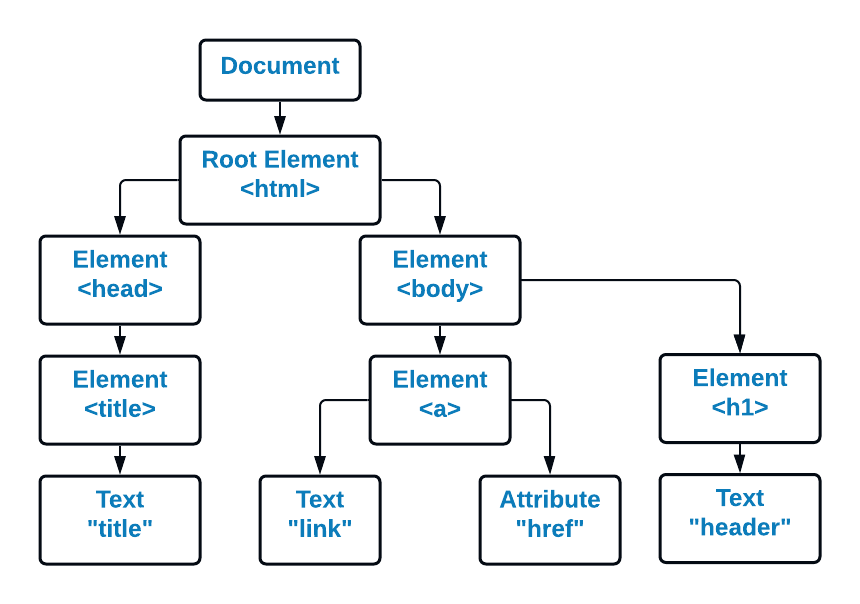
-
The HTML DOM is a standard object model and programming interface
for HTML. It defines:
- The HTML elements as objects
- The properties of all HTML elements
- The methods to access all HTML elements
- The events for all HTML elements
- The HTML DOM is a standard for how to get, change, add, or delete HTML elements.
HTML DOM Methods
- The HTML DOM can be accessed with JavaScript (and with other programming languages).
- In the DOM, all HTML elements are defined as objects.
- The programming interface is the properties and methods of each object.
- A property is a value that you can get or set (like changing the content of an HTML element).
- A method is an action you can do (like add or deleting an HTML element).
-
EX:
<!DOCTYPE html> <html> <body> <h2>My First Page</h2> <p id="demo"></p> <script> document.getElementById("demo").innerHTML = "Hello World!"; </script> </body> </html>
The HTML DOM Document Object
- The document object represents your web page.
- If you want to access any element in an HTML page, you always start with accessing the document object.
-
Finding HTML Elements
Method Description document.getElementById(id) Find an element by element id document.getElementsByTagName(name) Find elements by tag name document.getElementsByClassName(name) Find elements by class name <!DOCTYPE html> <html> <body> <form id="form1" action="#"> name: <input type="text" name="name" value="Ahmed"><br><br> Age : <input type="number" name="age" value="30"><br><br> <input type="submit" value="Submit"> </form> <p>These are the values of each element in the form:</p> <p id="demo"></p> <script> const x = document.forms["form1"]; let text = ""; for (let i = 0; i < x.length-1 ;i++) { text += x.elements[i].value + "<br>"; } document.getElementById("demo").innerHTML = text; </script> </body> </html> -
Changing HTML Elements
Property Description element.innerHTML = new html content Change the inner HTML of an element element.attribute = new value Change the attribute value of an HTML element element.style.property = new style Change the style of an HTML element Method Description element.setAttribute(attribute, value) Change the attribute value of an HTML element <!DOCTYPE html> <html> <body> <h1 id="id01">Old Heading</h1> <img id="myImage" src="smiley.gif"> <p id="demo"></p> <script>document.write(Date());</script> <script> const element = document.getElementById("id01"); element.innerHTML = "New Heading"; document.getElementById("myImage").src = "landscape.jpg"; document.getElementById("demo").innerHTML = "Date : " + Date(); </script> </body> </html> -
Adding and Deleting Elements
Method Description document.createElement(element) Create an HTML element document.removeChild(element) Remove an HTML element document.appendChild(element) Add an HTML element document.replaceChild(new, old) Replace an HTML element document.write(text) Write into the HTML output stream -
Adding Events Handlers
Method Description document.getElementById(id).onclick = function(){code} Adding event handler code to an onclick event -
Finding HTML Objects
Method Description document.anchors Returns all <a> elements that have a name attribute document.baseURI Returns the absolute base URI of the document document.body Returns the <body> element document.cookie Returns the document's cookie document.doctype Returns the document's doctype document.documentElement Returns the <html> element document.documentMode Returns the mode used by the browser document.documentURI Returns the URI of the document document.domain Returns the domain name of the document server document.embeds Returns all <embed> elements document.forms Returns all <form> elements document.head Returns the <head> element document.images Returns all <img> elements document.implementation Returns the DOM implementation document.inputEncoding Returns the document's encoding (character set) document.lastModified Returns the date and time the document was updated document.links Returns all <area> and <a> elements that have a href attribute document.readyState Returns the (loading) status of the document document.referrer Returns the URI of the referrer (the linking document) document.scripts Returns all <script> elements document.strictErrorChecking Returns if error checking is enforced document.title Returns the <title> element document.URL Returns the complete URL of the document
JavaScript Form Validation
JavaScript HTML DOM Events
- A JavaScript can be executed when an event occurs, like when a user clicks on an HTML element (onclick=JavaScript).
-
Examples of HTML events:
- When a user clicks the mouse
- When a web page has loaded
- When an image has been loaded
- When the mouse moves over an element
- When an input field is changed
- When an HTML form is submitted
- When a user strokes a key
-
Reacting to Events
Event Example onclick <!DOCTYPE html> <html> <body> <h1 onclick="changeText(this)">Click on this text</h1> <script> function changeText(id) { id.innerHTML = "Text Changed"; } </script> </body> </html> onload &&
onunload-
The
onloadandonunloadevents are triggered when the user enters or leaves the page. -
The
onloadevent can be used to check the visitor's browser type and browser version, and load the proper version of the web page based on the information.
<!DOCTYPE html> <html> <body onload="checkCookies()"> <p id="demo"></p> <script> function checkCookies() { var text = ""; if (navigator.cookieEnabled == true) { text = "Cookies are enabled."; } else { text = "Cookies are not enabled."; } document.getElementById("demo").innerHTML = text; } </script> </body> </html> onchange The onchangeevent is often used in combination with validation of input fields.<!DOCTYPE html> <html> <body> your name: <input type="text" id="name" onchange="upperCase()"> <p>When you leave the input field, a function is triggered.</p> <script> function upperCase() { const x = document.getElementById("name"); x.value = x.value.toUpperCase(); } </script> </body> </html> onmouseover && onmouseout The onmouseoverandonmouseoutevents can be used to trigger a function when the user mouses over, or out of, an HTML element<!DOCTYPE html> <html> <body> <div onmouseover="mOver(this)" onmouseout="mOut(this)" style="background-color:#D94A38;padding:40px;"> Over Me</div> <script> function mOver(obj) { obj.innerHTML = "Thank You" } function mOut(obj) { obj.innerHTML = "Mouse Over Me" } </script> </body> </html> onmousedown && onmouseup The onmousedown,onmouseup, andonclickevents are all parts of a mouse-click. First when a mouse-button is clicked, theonmousedownevent is triggered, then, when the mouse-button is released, theonmouseupevent is triggered, finally, when the mouse-click is completed, theonclickevent is triggered.<!DOCTYPE html> <html> <body> <div onmousedown="mDown(this)" onmouseup="mUp(this)" style="background-color:#D94A38;padding:40px;"> Click Me</div> <script> function mDown(obj) { obj.style.backgroundColor = "#1ec5e5"; obj.innerHTML = "Release Me"; } function mUp(obj) { obj.style.backgroundColor="#D94A38"; obj.innerHTML="Thank You"; } </script> </body> </html> -
The
-
The addEventListener() method
-
The
addEventListener()method attaches an event handler to an element without overwriting existing event handlers. - You can add many event handlers to one element.
-
When using the
addEventListener()method, the JavaScript is separated from the HTML markup, for better readability and allows you to add event listeners even when you do not control the HTML markup. -
You can easily remove an event listener by using the
removeEventListener()method. -
The
addEventListener()method allows you to add event listeners on any HTML DOM object such as HTML elements, the HTML document, the window object, or other objects that support events, like the xmlHttpRequest object. -
Syntax :
element.addEventListener(event, function, useCapture); - The first parameter is the type of the event (like "click" or "mousedown" or any other HTML DOM Event.)
- The second parameter is the function we want to call when the event occurs.
- The third parameter is a boolean value specifying whether to use event bubbling or event capturing. This parameter is optional.
- The default value is false, which will use the bubbling propagation, when the value is set to true, the event uses the capturing propagation.
-
Examples :
// Add an Event Handler to an Element element.addEventListener("click", function(){ alert("Hello World!"); }); // You can also refer to an external "named" function element.addEventListener("click", myFunction); function myFunction() { alert ("Hello World!"); } // Add Many Event Handlers to the Element element.addEventListener("click", myFunction); element.addEventListener("click", mySecondFunction); // You can add events of different types to the same element element.addEventListener("mouseover", myFunction); element.addEventListener("click", mySecondFunction); element.addEventListener("mouseout", myThirdFunction); // Add an event listener that fires when a user resizes the window window.addEventListener("resize", function(){ document.getElementById("demo").innerHTML = "sometext"; }); -
Passing Parameters
- When passing parameter values, use an "anonymous function" that calls the specified function with the parameters.
-
EX:
<!DOCTYPE html> <html> <body> <p>Click the button to perform a calculation 5*7.</p> <button id="myBtn">Try it</button> <p id="demo"></p> <script> let p1 = 5; let p2 = 7; document.getElementById("myBtn").addEventListener("click", function() { myFunction(p1, p2); }); function myFunction(a, b) { document.getElementById("demo").innerHTML = a * b; } </script> </body> </html> -
Event Bubbling and Event Capturing
- There are two ways of event propagation in the HTML DOM, bubbling and capturing.
-
Event propagation is a way of defining the element
order when an event occurs. If you have a
<p>element inside a<div>element, and the user clicks on the<p>element, which element's "click" event should be handled first?
In bubbling the inner most element's event is handled first and then the outer: the<p>element's click event is handled first, then the<div>element's click event.
In capturing the outer most element's event is handled first and then the inner: the<div>element's click event will be handled first, then the<p>element's click event. -
EX:
<!DOCTYPE html> <html> <head> <style> #myDiv1, #myDiv2 { background-color: coral; padding: 50px; } #myP1, #myP2 { background-color: white; font-size: 20px; border: 1px solid; padding: 20px; } </style> <meta content="text/html; charset=utf-8" http-equiv="Content-Type"> </head> <body> <div id="myDiv1"> <h2>Bubbling:</h2> <p id="myP1">Click me!</p> </div><br> <div id="myDiv2"> <h2>Capturing:</h2> <p id="myP2">Click me!</p> </div> <script> document.getElementById("myP1").addEventListener("click", function() { alert("You clicked the white element!"); }, false); document.getElementById("myDiv1").addEventListener("click", function() { alert("You clicked the orange element!"); }, false); document.getElementById("myP2").addEventListener("click", function() { alert("You clicked the white element!"); }, true); document.getElementById("myDiv2").addEventListener("click", function() { alert("You clicked the orange element!"); }, true); </script> </body> </html>
-
The
-
The removeEventListener() method
TheremoveEventListener()method removes event handlers that have been attached with theaddEventListener()method.element.removeEventListener("mousemove", myFunction);
DOM Nodes
- everything in an HTML document is a node.
- With the HTML DOM, all nodes in the node tree can be accessed by JavaScript.
- New nodes can be created, and all nodes can be modified or deleted.
- The nodes in the node tree have a hierarchical relationship to each other.
-
The terms parent, child, and sibling are used to describe the
relationships.
- In a node tree, the top node is called the root (or root node)
- Every node has exactly one parent, except the root (which has no parent)
- A node can have a number of children
- Siblings (brothers or sisters) are nodes with the same parent
-
EX:
<html> <head> <title>DOM Tutorial</title> </head> <body> <h1>DOM Lesson one</h1> <p>Hello world!</p> </body> </html> From the HTML above you can read:<html>is the root node<html>has no parents-
<html>is the parent of<head>and<body> -
<head>is the first child of<html> -
<body>is the last child of<html>
-
<head>has one child:<title> -
<title>has one child (a text node): "DOM Tutorial" -
<body>has two children:<h1>and<p> -
<h1>has one child: "DOM Lesson one" -
<p>has one child: "Hello world!" -
<h1>and<p>are siblings
-
You can use the following node properties to navigate between nodes with JavaScript:
parentNodechildNodes[nodenumber]firstChildlastChildnextSiblingpreviousSibling
-
Child Nodes and Node Values
The nodeValue property specifies the value of a node.- nodeValue for element nodes is
null - nodeValue for text nodes is the text itself
- nodeValue for attribute nodes is the attribute value
<!DOCTYPE html> <html> <body> <h1 id="id01">My First Page</h1> <h2 id="id02"></h2> <p id="id03"></p> <p id="demo"></p> <script> document.getElementById("id03").innerHTML = document.getElementById("id01").childNodes[0].nodeValue; document.getElementById("id02").innerHTML = document.getElementById("id01").firstChild.nodeValue; document.getElementById("demo").innerHTML = document.body.innerHTML; </script> </body> </html> - nodeValue for element nodes is
-
The nodeName Property
ThenodeNameproperty specifies the name of a node.- nodeName is read-only
- nodeName of an element node is the same as the tag name
- nodeName of an attribute node is the attribute name
- nodeName of a text node is always #text
- nodeName of the document node is always #document
<!DOCTYPE html> <html> <body> <h1 id="id01">My First Page</h1> <p id="id02"></p> <script> document.getElementById("id02").innerHTML = document.getElementById("id01").nodeName; </script> </body> </html> -
Creating New HTML Elements (Nodes)
To add a new element to the HTML DOM, you must create the element (element node) first, and then append it to an existing element.-
This code creates a new p element :
document.createElement("p") -
To add text to the p element, you must create a text node
first. This code creates a text node:
document.createTextNode("This is a new paragraph.") -
This code appends the new element to the existing element :
element.appendChild(new_element);
<!DOCTYPE html> <html> <body> <div id="div1"> <p id="p1">This is a paragraph.</p> <p id="p2">This is another paragraph.</p> </div> <script> const para = document.createElement("p"); const node = document.createTextNode("This is new."); para.appendChild(node); const element = document.getElementById("div1"); element.appendChild(para); </script> </body> </html> -
This code creates a new p element :
-
Creating new HTML Elements - insertBefore()
-
The
appendChild()method in the previous example, appended the new element as the last child of the parent. -
If you don't want that you can use the insertBefore() method:
<!DOCTYPE html> <html> <body> <div id="div1"> <p id="p1">This is a paragraph.</p> <p id="p2">This is another paragraph.</p> </div> <script> const para = document.createElement("p"); const node = document.createTextNode("This is new."); para.appendChild(node); const element = document.getElementById("div1"); const child = document.getElementById("p1"); element.insertBefore(para,child); </script> </body> </html> -
Removing Existing HTML Elements
To remove an HTML element, use theremove()method:<!DOCTYPE html> <html> <body> <div> <p id="p1">This is a paragraph.</p> <p id="p2">This is another paragraph.</p> </div> <button onclick="myFunction()">Remove Element</button> <script> function myFunction() { document.getElementById("p1").remove(); } </script> </body> </html> -
Removing a Child Node
For browsers that does not support theremove()method, you have to find the parent node to remove an element:<!DOCTYPE html> <html> <body> <div id="div1"> <p id="p1">This is a paragraph.</p> <p id="p2">This is another paragraph.</p> </div> <script> const parent = document.getElementById("div1"); const child = document.getElementById("p1"); parent.removeChild(child); </script> </body> </html> -
Replacing HTML Elements
To replace an element to the HTML DOM, use thereplaceChild()method:<!DOCTYPE html> <html> <body> <div id="div1"> <p id="p1">This is a paragraph.</p> <p id="p2">This is a paragraph.</p> </div> <script> const parent = document.getElementById("div1"); const child = document.getElementById("p1"); const para = document.createElement("p"); const node = document.createTextNode("This is new."); para.appendChild(node); parent.replaceChild(para,child); </script> </body> </html>
-
The
-
EX:
Change the text color of all p elements:
<!DOCTYPE html> <html> <body> <h2>JavaScript HTML DOM</h2> <p>Hello World</p> <p>Hello Ahmed</p> <p>Click the button to change the color of all p elements.</p> <button onclick="myFunction()">Try it</button> <script> function myFunction() { const myCollection = document.getElementsByTagName("p"); for (let i = 0; i < myCollection.length; i++) { myCollection[i].style.color = "red"; } } </script> </body> </html>
JavaScript Window
-
The
windowobject is supported by all browsers. It represents the browser's window. - All global JavaScript objects, functions, and variables automatically become members of the window object.
- Global variables are properties of the window object.
- Global functions are methods of the window object.
-
Even the document object (of the HTML DOM) is a property of the
window object:
window.document.getElementById("header");=document.getElementById("header"); -
Window Methods
-
window.innerHeight- the inner height of the browser window (in pixels) -
window.innerWidth- the inner width of the browser window (in pixels) window.open()- open a new windowwindow.close()- close the current windowwindow.moveTo()- move the current window-
window.resizeTo()- resize the current window
let w = window.innerWidth; let h = window.innerHeight; -
-
Window Screen
The window.screen object can be written without the window prefix.Property Description Example screen.width The screen.widthproperty returns the width of the visitor's screen in pixels.document.getElementById("demo").innerHTML = screen.width;screen.height The screen.heightproperty returns the height of the visitor's screen in pixels.document.getElementById("demo").innerHTML = screen.height;screen.availWidth The screen.availWidthproperty returns the width of the visitor's screen, in pixels, minus interface features like the Windows Taskbar.document.getElementById("demo").innerHTML = screen.availWidth;screen.availHeight The screen.availHeightproperty returns the height of the visitor's screen, in pixels, minus interface features like the Windows Taskbar.document.getElementById("demo").innerHTML = screen.availHeight;screen.colorDepth -
The
screen.colorDepthproperty returns the number of bits used to display one color. - All modern computers use 24 bit or 32 bit hardware for color resolution.
- 24 bits = 16,777,216 different "True Colors"
- 32 bits = 4,294,967,296 different "Deep Colors"
- Older computers used 16 bits: 65,536 different "High Colors" resolution.
- Very old computers, and old cell phones used 8 bits: 256 different "VGA colors".
document.getElementById("demo").innerHTML
= screen.colorDepth;
screen.pixelDepth The screen.pixelDepthproperty returns the pixel depth of the screen.document.getElementById("demo").innerHTML = screen.pixelDepth; -
The
-
Window Location
Thewindow.locationobject can be used to get the current page address (URL) and to redirect the browser to a new page.Property Description Example window.location.href The window.location.hrefproperty returns the URL of the current page.document.getElementById("demo").innerHTML = "location is " + window.location.href;window.location.hostname The window.location.hostnameproperty returns the name of the internet host (of the current page).document.getElementById("demo").innerHTML ="hostname is "+window.location.hostname;window.location.pathname The window.location.pathnameproperty returns the pathname of the current page.document.getElementById("demo").innerHTML = "path is " + window.location.pathname;window.location.protocol The window.location.protocolproperty returns the web protocol of the page.document.getElementById("demo").innerHTML = "protocol is"+window.location.protocol;window.location.port The window.location.portproperty returns the number of the internet host port (of the current page).document.getElementById("demo").innerHTML = "port number is "+window.location.port; -
Window History
-
The
window.historyobject can be written without the window prefix. - To protect the privacy of the users, there are limitations to how JavaScript can access this object.
Property Description Example history.back() The history.back()method loads the previous URL in the history list.function goBack() { window.history.back() }history.forward() The history.forward()method loads the next URL in the history list.function goForward() { window.history.forward() } -
The
-
Window Navigator
-
The
window.navigatorobject contains information about the visitor's browser.Property Description Example Browser Cookies The cookieEnabledproperty returns true if cookies are enabled, otherwise false.document.getElementById("demo").innerHTML = "cookiesEnabled is"+navigator.cookieEnabled;Browser Application Name The appName property returns the application name of the browser. document.getElementById("demo").innerHTML = "navigator.appName is "+ navigator.appName;Application Code Name The appCodeNameproperty returns the application code name of the browser.document.getElementById("demo").innerHTML = "appCodeName is" + navigator.appCodeName;Browser Engine The productproperty returns the product name of the browser engine.document.getElementById("demo").innerHTML = "navigator.product is " + navigator.product;Browser Version The appVersionproperty returns version information about the browser.document.getElementById("demo").innerHTML = navigator.appVersion;Browser Agent The userAgentproperty returns the user-agent header sent by the browser to the server.document.getElementById("demo").innerHTML = navigator.userAgent;Browser Platform The platformproperty returns the browser platform (operating system).document.getElementById("demo").innerHTML = navigator.platform;Browser Language The languageproperty returns the browser's language.document.getElementById("demo").innerHTML = navigator.language;Browser Online The onLineproperty returns true if the browser is online.document.getElementById("demo").innerHTML = navigator.onLine;
JavaScript Popup Boxes
-
Alert Box
- An alert box is often used if you want to make sure information comes through to the user.
- When an alert box pops up, the user will have to click "OK" to proceed.
-
EX:
alert("I am an alert box!");
-
Confirm Box
- A confirm box is often used if you want the user to verify or accept something.
- When a confirm box pops up, the user will have to click either "OK" or "Cancel" to proceed.
- If the user clicks "OK", the box returns true. If the user clicks "Cancel", the box returns false.
-
EX:
<!DOCTYPE html> <html> <body> <button onclick="myFunction()">Try it</button> <p id="demo"></p> <script> function myFunction() { var txt; if (confirm("Press a button!")) { txt = "You pressed OK!"; } else { txt = "You pressed Cancel!"; } document.getElementById("demo").innerHTML = txt; } </script> </body> </html>
-
Prompt Box
- A prompt box is often used if you want the user to input a value before entering a page.
- When a prompt box pops up, the user will have to click either "OK" or "Cancel" to proceed after entering an input value.
- If the user clicks "OK" the box returns the input value. If the user clicks "Cancel" the box returns null.
-
EX:
<!DOCTYPE html> <html> <body> <button onclick="myFunction()">Try it</button> <p id="demo"></p> <script> function myFunction() { let text; let person = prompt("Please enter your name:", "Harry Potter"); if (person == null || person == "") { text = "User cancelled the prompt."; } else { text = "Hello " + person + "! How are you today?"; } document.getElementById("demo").innerHTML = text; } </script> </body> </html>
JavaScript Timing Events
- The window object allows execution of code at specified time intervals (These time intervals are called timing events).
-
The setTimeout() Method
-
Syntax :
setTimeout(function, milliseconds); - The first parameter is a function to be executed.
- The second parameter indicates the number of milliseconds before execution.
-
EX:
<!DOCTYPE html> <html> <body> <p>Click "Try it". Wait 3 seconds, and the page will alert "Hello".</p> <button onclick="setTimeout(myFunction, 3000);">Try it</button> <script> function myFunction() { alert('Hello'); } </script> </body> </html> -
The
clearTimeout()method stops the execution of the function specified in setTimeout(). -
Syntax :
myVar = setTimeout(function, milliseconds);
clearTimeout(myVar); -
EX:
<!DOCTYPE html> <html> <body> <p>Click "Try it". Wait 3 seconds. The page will alert "Hello".</p> <p>Click "Stop" to prevent the first function to execute.</p> <p>(You must click "Stop" before the 3 seconds are up.)</p> <button onclick="myVar = setTimeout(myFunction, 3000)">Try it</button> <button onclick="clearTimeout(myVar)">Stop it</button> <script> function myFunction() { alert("Hello"); } </script> </body> </html>
-
Syntax :
-
The setInterval() Method
-
The
setInterval()method repeats a given function at every given time-interval. -
Syntax :
setInterval(function, milliseconds); - The first parameter is the function to be executed.
- The second parameter indicates the length of the time-interval between each execution.
-
EX:
<!DOCTYPE html> <html> <body> <p>A script on this page starts this clock:</p> <p id="demo"></p> <script> setInterval(myTimer, 1000); function myTimer() { const d = new Date(); document.getElementById("demo").innerHTML = d.toLocaleTimeString(); } </script> </body> </html>
-
The
-
The
clearInterval()method stops the executions of the function specified in thesetInterval()method. -
The
clearInterval()method uses the variable returned fromsetInterval(). -
Syntax :
                let myVar = setInterval(function, milliseconds);

clearInterval(myVar); -
EX:
<!DOCTYPE html> <html> <body> <p>A script on this page starts this clock:</p> <p id="demo"></p> <button onclick="clearInterval(myVar)">Stop time</button> <script> let myVar = setInterval(myTimer ,1000); function myTimer() { const d = new Date(); document.getElementById("demo").innerHTML = d.toLocaleTimeString(); } </script> </body> </html>
JavaScript Objects
-
In JavaScript, almost "everything" is an object.
-
Booleans can be objects (if defined with the
newkeyword) -
Numbers can be objects (if defined with the
newkeyword) -
Strings can be objects (if defined with the
newkeyword) - Dates are always objects
- Maths are always objects
- Regular expressions are always objects
- Arrays are always objects
- Functions are always objects
-
Booleans can be objects (if defined with the
-
JavaScript variables can contain single values: (
let person = "Ahmed mohamed";) - Objects are variables too. But objects can contain many values.
- Object values are written as name : value pairs (name and value separated by a colon).
-
EX:
let person = {firstName:"Ahmed", lastName:"mohamed", age:30, eyeColor:"blue"}; - It is a common practice to declare objects with the const keyword.
-
EX:
const person = {firstName:"Ahmed", lastName:"mohamed", age:30, eyeColor:"blue"}; -
Creating a JavaScript Object
There are different ways to create new objects:- Create a single object, using an object literal.
-
Create a single object, with the keyword
new. - Define an object constructor, and then create objects of the constructed type.
- Create an object using
Object.create().
-
Using an Object Literal
- An object literal is a list of name:value pairs (like age:20) inside curly braces {}.
-
EX:
const person = {firstName:"John", lastName:"Doe", age:50, eyeColor:"blue"}; -
Spaces and line breaks are not important.
const person = { firstName: "John", lastName: "Doe", age: 50, eyeColor: "blue" }; -
This example creates an empty JavaScript object, and then
adds 4 properties:
  const person = {};
  person.firstName = "John";
  person.lastName = "Doe";
  person.age = 50;
  person.eyeColor = "blue";
-
Using the JavaScript Keyword new
The following example create a new JavaScript object usingnew Object(), and then adds 4 properties:const person = new Object(); person.firstName = "John"; person.lastName = "Doe"; person.age = 50; person.eyeColor = "blue"; -
JavaScript Object Constructors
- The constructor property returns a reference to the Object constructor function that created the instance object. Note that the value of this property is a reference to the function itself, not a string containing the function's name.
-
EX:
function Person(first, last, age, eye) { this.firstName = first; this.lastName = last; this.age = age; this.eyeColor = eye; } - It is considered good practice to name constructor functions with an upper-case first letter.
- You cannot add a new property to an object constructor the same way you add a new property to an existing object.
- You cannot add a new method to an object constructor the same way you add a new method to an existing object.
- To add a new property or method to a constructor, you must add it to the constructor function.
-
function Person(firstName, lastName, age, eyeColor) { this.firstName = firstName; this.lastName = lastName; this.age = age; this.eyeColor = eyeColor; this.nationality = "English"; // object property have default value. this.changeName = function (name) { this.lastName = name; }; } -
Built-in JavaScript Constructors
new String()     // A new String object
new Number()    // A new Number object
new Boolean()   // A new Boolean object
new Object()    // A new Object object
new Array()     // A new Array object
new RegExp()    // A new RegExp object
new Function()  // A new Function object
new Date()      // A new Date object

// it can be simple
let x1 = "";             // new primitive string
let x2 = 0;              // new primitive number
let x3 = false;          // new primitive boolean
const x4 = {};           // new Object object
const x5 = [];           // new Array object
const x6 = /()/          // new RegExp object
const x7 = function(){}; // new function
JavaScript Object Properties
- Properties are the values associated with a JavaScript object.
- Properties can usually be changed, added, and deleted, but some are read only.
-
The syntax for accessing the property of an object is:
objectName.property // person.ageORobjectName["property"] // person["age"]ORobjectName[expression] // x = "age"; person[x] -
JavaScript for...in Loop
EX:<!DOCTYPE html> <html> <body> <p>Looping object property values:</p> <p id="demo"></p> <script> const person = { fname:"John", lname:"Doe", age:25 }; let txt = ""; for (let x in person) { txt += person[x] + "<br>"; } document.getElementById("demo").innerHTML = txt; </script> </body> </html> -
Adding New Properties
- You can add new properties to an existing object by simply giving it a value.
-
const person = { firstname: "John", lastname: "Doe", age: 50, eyecolor: "blue" }; person.nationality = "English"; -
Deleting Properties
-
The
deletekeyword deletes a property from an object. -
const person = { firstName: "John", lastName: "Doe", age: 50, eyeColor: "blue" }; delete person["age"]; - The delete keyword deletes both the value of the property and the property itself.
- After deletion, the property cannot be used before it is added back again.
- The delete operator is designed to be used on object properties. It has no effect on variables or functions.
-
The
-
Nested Objects
myObj = { name:"John", age:30, cars: { car1:"Ford", car2:"BMW", car3:"Fiat" } } myObj.cars.car2; -
Nested Arrays and Objects
<!DOCTYPE html> <html> <body> <p id="demo"></p> <script> let x = ""; const myObj = { name: "John", age: 30, cars: [ {name:"Ford", models:["Fiesta", "Focus", "Mustang"]}, {name:"BMW", models:["320", "X3", "X5"]}, {name:"Fiat", models:["500", "Panda"]} ] } for (let i in myObj.cars) { x += "<h2>" + myObj.cars[i].name + "</h2>"; for (let j in myObj.cars[i].models) { x += myObj.cars[i].models[j] + "<br>"; } } document.getElementById("demo").innerHTML = x; </script> </body> </html>
JavaScript Object Methods
- JavaScript methods are actions that can be performed on objects.
- A JavaScript method is a property containing a function definition.
-
Accessing Object Methods
-
const person = { firstName: "John", lastName: "Doe", id: 5566, fullName: function() { return this.firstName + " " + this.lastName; } }; document.getElementById("demo").innerHTML = person.fullName(); - If you access the fullName property, without (), it will return the function definition.
-
-
Adding a Method to an Object
  const person = {
    firstName: "John",
    lastName: "Doe",
    id: 5566,
  };
  person.name = function() {
    return this.firstName + " " + this.lastName;
  };
  document.getElementById("demo").innerHTML =
  "My father is " + person.name();
Using Object.values()
Object Accessors
-
JavaScript Getter
- This example uses a lang property to get the value of the language property.
-
  // Create an object:
  const person = {
    firstName: "John",
    lastName: "Doe",
    language: "en",
    get lang() {
      return this.language;
    }
  };
  // Display data from the object using a getter:
  document.getElementById("demo").innerHTML = person.lang;
-
JavaScript Setter
- This example uses a lang property to set the value of the language property.
-
  const person = {
    firstName: "John",
    lastName: "Doe",
    language: "",
    set lang(lang) {
      this.language = lang;
    }
  };
  // Set an object property using a setter:
  person.lang = "en";
  // Display data from the object:
  document.getElementById("demo").innerHTML = person.language;
Object Prototypes
- The JavaScript prototype property allows you to add new properties to object constructors.
-
function Person(first, last, age, eyecolor) { this.firstName = first; this.lastName = last; this.age = age; this.eyeColor = eyecolor; } Person.prototype.nationality = "English"; - The JavaScript prototype property also allows you to add new methods to objects constructors.
-
  function Person(first, last, age, eyecolor) {
    this.firstName = first;
    this.lastName = last;
    this.age = age;
    this.eyeColor = eyecolor;
  }
  Person.prototype.name = function() {
    return this.firstName + " " + this.lastName;
  };
The JavaScript call() Method
-
The
call()method is a predefined JavaScript method. - It can be used to invoke (call) a method with an owner object as an argument (parameter).
-
With
call(), an object can use a method belonging to another object. -
EX:
const person = { fullName: function() { return this.firstName + " " + this.lastName; } } const person1 = { firstName:"John", lastName: "Doe" } const person2 = { firstName:"Mary", lastName: "Doe" } // This will return "John Doe": person.fullName.call(person1); -
The call() method can accept arguments:
const person = {
fullName: function(city, country) {
  return this.firstName + " " + this.lastName + "," + city + "," + country;
}
}

const person1 = {
firstName:"John",
lastName: "Doe"
}
person.fullName.call(person1, "Oslo", "Norway");
The JavaScript apply() Method
-
With the
apply()method, you can write a method that can be used on different objects. -
EX:
const person = { fullName: function() { return this.firstName + " " + this.lastName; } } const person1 = { firstName: "Mary", lastName: "Doe" } // This will return "Mary Doe": person.fullName.apply(person1); -
The Difference Between call() and apply()
-
The
call()method takes arguments separately. -
The
apply()method takes arguments as an array. -
The
apply()method is very handy if you want to use an array instead of an argument list.
-
The
-
The apply() Method with Arguments
Theapply()method accepts arguments in an array.const person = { fullName: function(city, country) { return this.firstName + " " + this.lastName + "," + city + "," + country; } } const person1 = { firstName:"John", lastName: "Doe" } person.fullName.apply(person1, ["Oslo", "Norway"]);
JavaScript Classes
- Use the keyword
classto create a class. - Always add a method named
constructor(). -
Syntax :
class ClassName { constructor() { ... } method_1() { ... } method_2() { ... } method_3() { ... } } -
The constructor method is a special method:
- It has to have the exact name "constructor"
- It is executed automatically when a new object is created
- It is used to initialize object properties
-
EX:
<!DOCTYPE html> <html> <body> <h2>JavaScript Class Method</h2> <p>Pass a parameter into the "age()" method.</p> <p id="demo"></p> <script> class Car { constructor(name, year) { this.name = name; this.year = year; } age(x) { return x - this.year; } } let date = new Date(); let year = date.getFullYear(); let myCar = new Car("Ford", 2014); document.getElementById("demo").innerHTML= "My car is " + myCar.age(year) + " years old."; </script> </body> </html>
Class Inheritance
-
To create a class inheritance, use the
extendskeyword. - A class created with a class inheritance inherits all the methods from another class:
-
EX:
<!DOCTYPE html> <html> <body> <h2>JavaScript Class Inheritance</h2> <p>Use the "extends" keyword to inherit all methods from another class.</p> <p>Use the "super" method to call the parent's constructor function.</p> <p id="demo"></p> <script> class Car { constructor(brand) { this.carname = brand; } present() { return 'I have a ' + this.carname; } } class Model extends Car { constructor(brand, mod) { super(brand); this.model = mod; } show() { return this.present() + ', it is a ' + this.model; } } let myCar = new Model("Ford", "Mustang"); document.getElementById("demo").innerHTML = myCar.show(); </script> </body> </html> - The
super()method refers to the parent class. -
By calling the
super()method in the constructor method, we call the parent's constructor method and gets access to the parent's properties and methods. - Inheritance is useful for code reusability: reuse properties and methods of an existing class when you create a new class.
Getters and Setters
- Classes also allows you to use getters and setters.
- It can be smart to use getters and setters for your properties, especially if you want to do something special with the value before returning them, or before you set them.
-
To add getters and setters in the class, use the
getandsetkeywords. -
EX:
<!DOCTYPE html> <html> <body> <h2>JavaScript Class Gettter/Setter</h2> <p id="demo"></p> <script> class Car { constructor(brand) { this.carname = brand; } get cnam() { return this.carname; } set cnam(x) { this.carname = x; } } let myCar = new Car("Ford"); document.getElementById("demo").innerHTML = myCar.cnam; </script> </body> </html> - even if the getter is a method, you do not use parentheses when you want to get the property value.
- Many programmers use an underscore character _ before the property name to separate the getter/setter from the actual property.
-
EX:
class Car {
  constructor(brand) {
    this._carname = brand;
  }
  get carname() {
    return this._carname;
  }
  set carname(x) {
    this._carname = x;
  }
}
let myCar = new Car("Ford");
document.getElementById("demo").innerHTML = myCar.carname;
JavaScript Static Methods
- Static class methods are defined on the class itself.
-
You cannot call a
staticmethod on an object, only on an object class. -
EX:
class Car { constructor(name) { this.name = name; } static hello() { return "Hello!!"; } } let myCar = new Car("Ford"); // You can calll 'hello()' on the Car Class: document.getElementById("demo").innerHTML = Car.hello(); // But NOT on a Car Object: // document.getElementById("demo").innerHTML = myCar.hello(); // this will raise an error. -
If you want to use the myCar object inside the
staticmethod, you can send it as a parameter. -
EX:
class Car {
  constructor(name) {
    this.name = name;
  }
  static hello(x) {
    return "Hello " + x.name;
  }
}
let myCar = new Car("Ford");
document.getElementById("demo").innerHTML = Car.hello(myCar);
Extra Sources
There are more lessons in that chapter but it's your turn to try to find and learn them and here are some examples:
- JS regular expression
- JS Sets
- JS Maps
- JS Cookies
- JS Web APIs
- JS AJAX
- JS JSON